
Show family photos on a digital frame
Add your family's picture frame by its email address, and every new photo in the circle goes to it. Frames need Premium.
Your photos, on the wall
Most picture frames have their own email address. Add that address to your circle, and every new photo shared there is sent to the frame on its own. Handy for someone who doesn't use a phone much.
A frame only ever gets photos. It never gets notes, captions, comments, names, or dates, and it never gets anything that has been hidden or taken down.
Frames need Premium
Picture frames need Premium for your circle. Without it, frames are paused and stop getting photos. Frames you added stay listed and start getting photos again when Premium starts again, so you don't need to add them again.
Who can add a frame
The person who started the circle and its admins add, change, and remove frames. If that isn't you, ask the owner or an admin to add it for you. A frame belongs to the whole circle, so someone leaving does not remove it.
Adding a frame
- Open your circle, choose Circle options, then Settings.
- Under Picture frames, choose Add a frame.
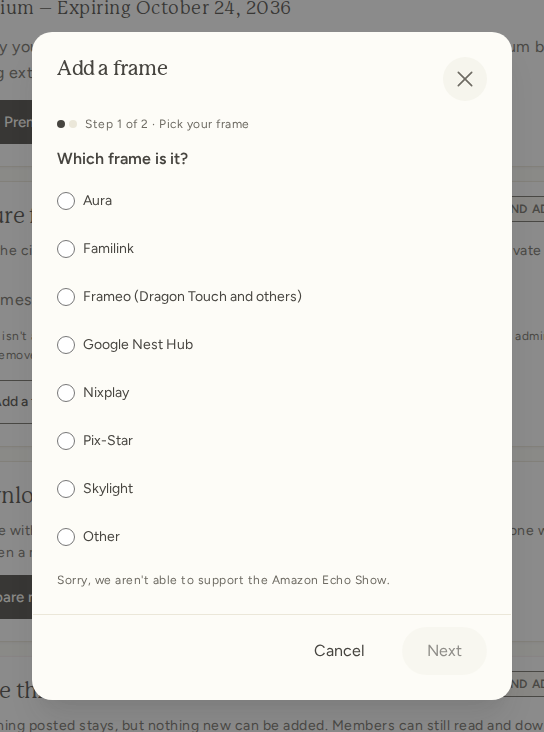
- Under Which frame is it?, pick your frame's brand and choose Next.
- Give the frame a name, like "Grandma's kitchen", and type the frame's email address (see your brand below for where to find it).
- Choose whose photos go to this frame (everyone, to start with).
- Choose Add frame and send a test photo. We send the newest photo in your circle right away, or a ShareLocket sample if there isn't one yet, so you can check it arrives.
Our photos come from [email protected]. If your frame only accepts photos from people you approve, add that address.
Skylight
You'll find the frame's address in the Skylight app, under the frame's settings. It ends in @ourskylight.com. If your Skylight only accepts approved senders, add [email protected] to its list. We send a test photo right away so you can check.
Nixplay
The address is your Nixplay username followed by @mynixplay.com, shown in the Nixplay app under your account. The first photo from us will wait in Nixplay until you accept [email protected] as a sender; after that, photos land in the Emailed Photos playlist. Make sure that playlist is in the frame's rotation. Nixplay takes photos from 50 KB to 12 MB, so a very small or very large photo is skipped.
Pix-Star
The address ends in @mypixstar.com and is shown on the frame and in the Pix-Star dashboard. If you set email filters on the frame, allow [email protected].
Familink
You choose the address in the Familink app; it ends in @familinkframe.com. Nothing else to set up.
Aura, Google Nest Hub, Frameo, and Amazon Echo Show
- Aura and Google Nest Hub take photos only through a Google Photos album, so we can't add them yet. We're working on it.
- Frameo frames only take photos from the Frameo app. There is no address we can send to.
- Sorry, we aren't able to support the Amazon Echo Show.
Have a different frame? Pick Other. If it has a frame email address we know (PhotoSpring, for one), you can add it on the next step. If not, choose Let us know, tell us the brand, and we'll see if we can add support for it.
Whose photos go to the frame
Everyone in the circle, and anyone who joins later. Untick a person to keep their photos off this frame; they stay in the circle, and their photos still go to your other frames.
Changing or removing a frame
- Choose Change beside a frame to rename it or change whose photos it gets.
- Choose Send a test photo to check the frame is still getting our photos.
- Choose Remove when you no longer need a frame. It stops getting photos straight away.
If the circle itself has been paused, with Pause this circle in its settings, you can still see your frames and choose Remove, but adding, changing, and testing come back only once the circle is reopened.
Need help?
If your frame isn't showing photos, reach out using the Still stuck? Get in touch link at the bottom of the Help panel and we'll take care of it.