
Choose how you hear from your circle
Choose how often we email or text you about a circle — the moment something happens, a daily or weekly summary, or not at all.
Two ways to keep up
By default, everyone in a circle gets a summary of everything shared once a day, by email and by text. The text goes only to a mobile number you've confirmed on your account, and only if you've agreed to get text messages from us. If that suits you, there's nothing to change.
You can also choose to be emailed when something happens, instead of waiting for the summary, or switch to a weekly summary.
Where to change it
- Open your circle.
- Choose Circle options, then Notifications.
- Pick what you'd like on the Email card, and again on the Text messages card.
You can also get there from the circle's settings. Under How you hear from this circle, you'll see what you get today. Choose Notification settings to change it.
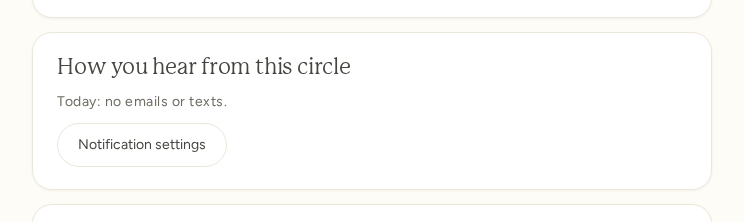
There's no Save button. Your choice is kept as soon as you make it, and a short note confirms it: Email setting saved. or Text message setting saved.
These choices are just for this circle. Each circle you're in has its own settings.
Catching up on what's happened
The circle's Notifications page is only for these settings. To see your notifications themselves, choose All notifications at the top of that page. It opens your notifications inbox, which shows activity from across your account.
What you can choose for email
Under When should we email you about this circle? you'll find:
- Everything. An email each time something happens in this circle: a new post, or someone mentioning you. You'll get the weekly summary too.
- New posts and mentions. An email for each new post and each time someone mentions you. You'll get the weekly summary too.
- A daily summary. One email a day with that day’s posts. This is what everyone starts with.
- A weekly summary. One email a week.
- Nothing at all. No emails from this circle. You can still open it any time.
The first two add to the weekly summary rather than replacing it. To stop the emails from one circle, choose Unsubscribe at the bottom of any email from it, then choose Stop emails from the circle's name on the page that opens. That turns this circle's email to Nothing at all, and the page then has Undo, Daily summary, and Weekly summary right there. Your other circles and your texts stay the same. See How do I get fewer emails?
Your choice is per circle. If you're in more than one, you can hear about everything in one and keep the other to a weekly email.
What you can choose for text messages
Texts are separate, and they go to the verified mobile number on your account. Under When should we text you about this circle? you'll find:
- A daily summary. One text a day with that day’s posts. This is what everyone starts with.
- A weekly summary. One text a week with that week’s posts.
- No texts. No text messages from this circle.
There's no per-post option for texts, so a busy afternoon can't fill up your phone.
You won't be flooded
If ten photos arrive at once on a busy afternoon, you will not get ten emails.
We gather up what's happened and send it together. When a circle gets busy, we bundle its activity into fewer emails, and go back to normal when it quiets down.
If someone mentions you in a post that also went to everyone, that's still one email, not two.
Texting STOP
Texting STOP to a circle's number stops that circle's emails and texts. Replying STOP to one of its summary emails within 14 days, if you haven't already replied to it, does the same. Your other circles stay the same. To get them back, text START to the circle's number, or choose again on the circle's Notifications page.
When you're mentioned
If someone writes your name with an @ in front of it, like @Nancy, you'll get an email about it and a notification. It only goes to the person who was mentioned, never to the person who wrote it.
You'll hear about a mention once the post is ready for everyone to see, not the instant it's typed. Photos may need time to finish processing first.
Turning it all off
To stop every email from ShareLocket at once, whatever you've chosen in each circle, turn off All email from ShareLocket under News from ShareLocket in My Account, or choose Turn off all email from ShareLocket on the unsubscribe page once you've stopped a circle's emails. It overrides what you choose on a circle's Notifications page. Receipts, sign-in codes, and security alerts still arrive.