
Invite people to your circle
Owners and admins invite people by email or text from the circle's Members page, and can send an invitation again or take it back.
This is for a circle's owner and admins. At the end, the person you invite will have a link to join the circle.
You need to be the owner or an admin.
Send an invitation
- Open your circle, choose Circle options, then Members.
- Under Add someone, type a name in Name (optional) if you like. It's how their name shows up in the circle.
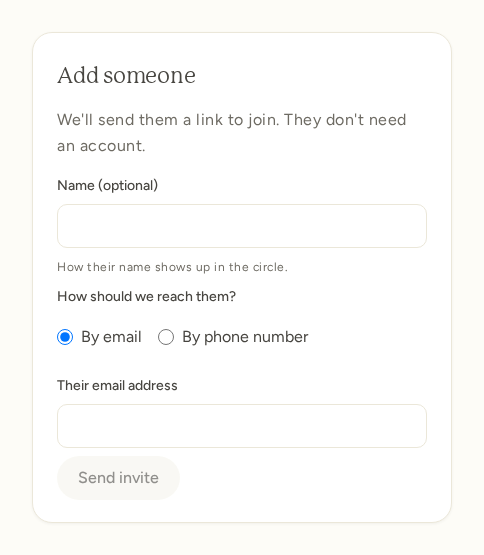
- Choose By email or By phone number, and enter their email address or phone number.
- Choose Send invite.
We send them a link to join. They don't need an account first, and there's nothing to download. They show up in the list of members once they join. For what they see, see Accept a circle invitation.
You can't invite anyone while the circle is paused.
Room in the circle
A free circle has room for 10 people, and a Premium circle for 25. Everyone in the circle counts, and so does each invitation that hasn't been answered yet. When a free circle is full, the Members page says No spots open until someone leaves, or the circle adds Premium. See What a free circle includes.
Send an invitation again, or take it back
Invitations that haven't been accepted yet are listed under Pending invites, with who sent each one and when.
- Send it again sends a fresh link, and the old link stops working.
- Take back cancels the invitation and frees its spot. Its link stops working.
An invitation can be sent again two minutes after the last send, and then once per hour. The same email address or phone number can get up to three circle invitations a day, across all circles.
Once someone has joined, their invitation is done. To take them out of the circle, choose Remove beside their name.
What's next
- Owner, admins, and members
- My circle invitation link isn't working
- I was invited to a circle but nothing arrived
Need help?
If something doesn't look right, get in touch and we'll help.